
Build a savings goal tracker from scratch in Google Sheets - step by step, with progress bars, on-track/behind status, and milestone celebrations.
A number in a savings account is abstract. A progress bar filling from 25% to 26%? That’s tangible. This tutorial walks through building a savings goal tracker in Google Sheets, from a blank spreadsheet to a visual dashboard with progress bars and on-track/behind status.
The whole thing takes about 15 minutes. By the end, you’ll have a tracker that updates automatically whenever you change your saved amounts.
Prefer something ready-made? Our free Savings Goal Tracker holds up to seven goals with target amount, saved, remaining and target date, and the remaining and total formulas are already in place. The Monthly Budget Template has a Goals sheet that tracks target, saved, remaining and progress for each goal.
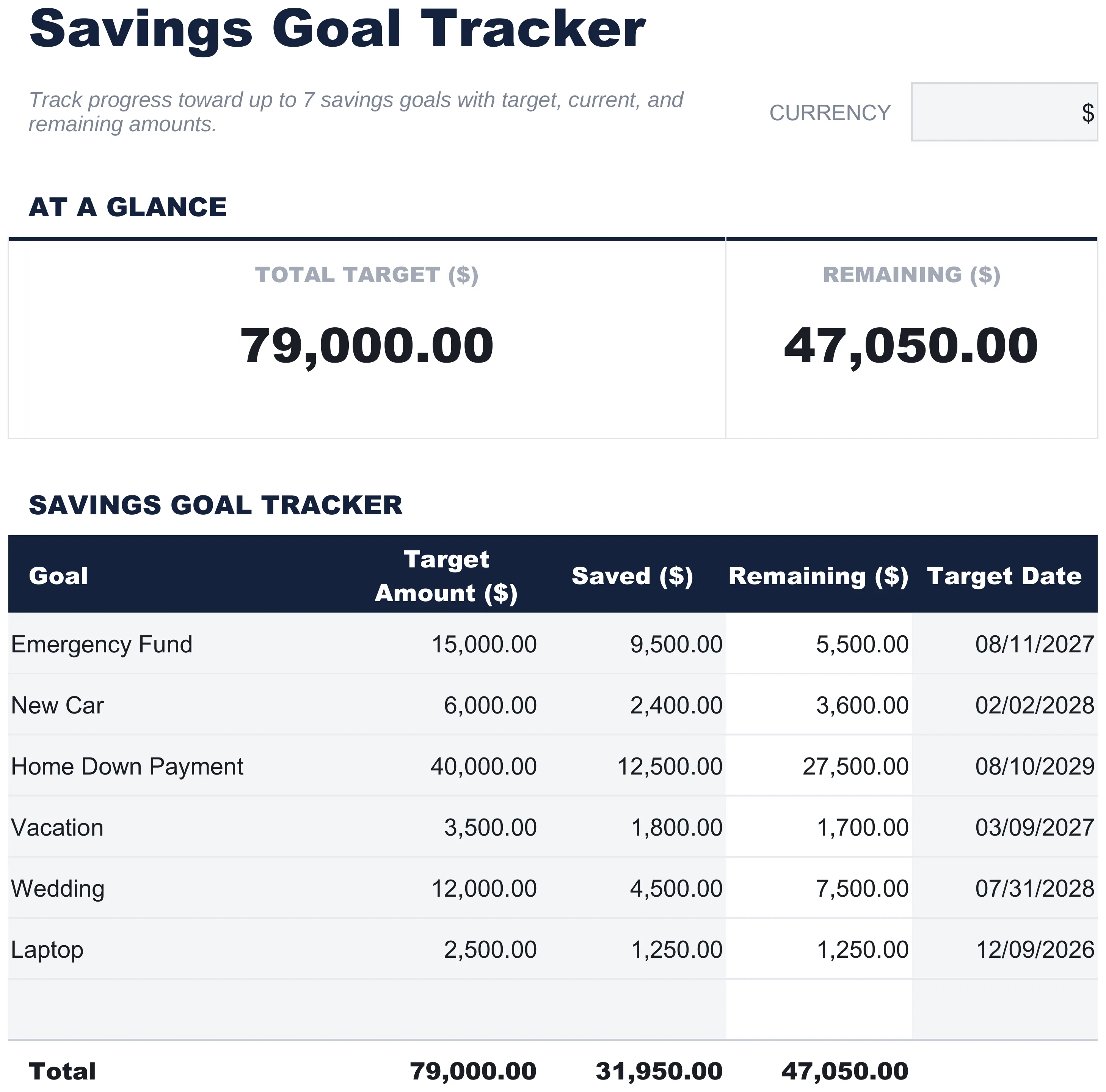 The free Savings Goal Tracker template (Free tier) - a ready-made table for up to seven goals, covering the goal, target, saved and remaining columns built in Steps 1 and 2.
Step 1: Create the Goals Table
Open a new Google Sheet and type these headers in row 1:
| A | B | C | D | E | |
|---|---|---|---|---|---|
| 1 | Goal | Target | Saved | Start Date | Target Date |
Now fill in your goals starting in row 2. Here’s an example with three goals:
| A | B | C | D | E | |
|---|---|---|---|---|---|
| 2 | Emergency Fund | 10000 | 4500 | 2025-06-01 | 2026-06-01 |
| 3 | Vacation | 3000 | 1200 | 2025-09-01 | 2026-08-01 |
| 4 | New Car | 15000 | 6000 | 2025-01-01 | 2027-01-01 |
A few notes:
- Target (B) is the total amount you’re working toward
- Saved (C) is how much you’ve saved so far - this is the column you’ll update over time
- Start Date (D) is when you started saving for this goal
- Target Date (E) is when you’d like to reach it
Format columns B and C as currency: select them, go to Format > Number > Currency. Format columns D and E as dates: Format > Number > Date.
Step 2: Add the Core Formulas
Now add four formula columns. Type these headers in F1 through I1:
| F | G | H | I | |
|---|---|---|---|---|
| 1 | Remaining | Progress | Days Left | Monthly Needed |
Then enter these formulas in row 2:
F2 (Remaining) - how much is left to save:
=B2-C2G2 (Progress) - percentage complete:
=C2/B2After entering this formula, format column G as a percentage: select the column, go to Format > Number > Percent.
H2 (Days Left) - countdown to target date:
=MAX(E2-TODAY(),0)The MAX(...,0) keeps this from going negative after the target date passes.
I2 (Monthly Needed) - how much to save per month to reach the goal on time:
=MAX((B2-C2)/MAX(DATEDIF(TODAY(),E2,"M"),1),0)This divides the remaining amount by the months left, using DATEDIF to count whole months between today and the target date. The inner MAX(...,1) prevents a divide-by-zero error when the target date is in the current month. The outer MAX(...,0) avoids negative numbers for goals already reached. Format this column as currency.
Copy all four formulas down: Select F2:I2, then drag the fill handle (small blue square at the bottom-right corner of the selection) down to cover all your goal rows.
Your spreadsheet now looks like this:
| A | B | C | D | E | F | G | H | I | |
|---|---|---|---|---|---|---|---|---|---|
| 1 | Goal | Target | Saved | Start Date | Target Date | Remaining | Progress | Days Left | Monthly Needed |
| 2 | Emergency Fund | $10,000 | $4,500 | 2025-06-01 | 2026-06-01 | $5,500 | 45% | … | … |
| 3 | Vacation | $3,000 | $1,200 | 2025-09-01 | 2026-08-01 | $1,800 | 40% | … | … |
| 4 | New Car | $15,000 | $6,000 | 2025-01-01 | 2027-01-01 | $9,000 | 40% | … | … |
The Days Left and Monthly Needed columns will show actual numbers based on today’s date. Try changing a Saved amount in column C - all the formula columns update instantly.
Want to sanity-check a single goal before building the sheet? This calculator works out how much a monthly contribution grows toward a target, and how long a goal takes to reach:
Step 3: Add a Progress Bar
Pick one of these three options and add it in column J. Type “Progress Bar” in J1.
Option A: SPARKLINE bar (recommended for Google Sheets)
Enter this formula in J2:
=SPARKLINE(G2,{"charttype","bar";"max",1;"color1","#34a853"})The SPARKLINE function draws a green horizontal bar inside the cell. It reads from the Progress column (G2), so it updates automatically. Widen column J to about 150 pixels so the bar has room to display.
Option B: Text-based bar (works in Google Sheets and Excel)
Enter this formula in J2:
=REPT("█",ROUND(G2*10,0))&REPT("░",10-ROUND(G2*10,0))This creates output like ████░░░░░░ for 40% complete. The bar is 10 characters wide.
Option C: Color the Progress column (no extra column needed)
Instead of adding column J, color the existing Progress column:
- Select G2 down through your last goal row
- Go to Format > Conditional formatting
- Under “Format rules,” choose Color scale
- Set minimum to white and maximum to green
- Click Done
Each cell now shows a color gradient based on progress.
Whichever option you chose, copy the formula down for all your goal rows.
Step 4: Add On-Track / Behind Status
This is the formula from the customer feedback that was originally broken - here’s the correct version. Type “Status” in K1, then enter this formula in K2:
=IF(C2/B2 >= (TODAY()-D2)/(E2-D2), "On Track", "Behind")Here’s what each part does:
C2/B2is your actual progress (Saved divided by Target)(TODAY()-D2)is how many days have passed since your Start Date(E2-D2)is the total number of days in your saving window- Dividing those gives expected progress - the fraction of time that’s elapsed
If your actual saving percentage is ahead of the elapsed time percentage, you’re on track. Otherwise, you’re behind.
Copy this formula down column K for each goal row.
Step 5: Add Milestone Messages
For a bit of extra motivation, add a “Message” column in L1 with this formula in L2:
=IF(C2>=B2,"Goal reached!",IF(G2>=0.9,"Almost there!",IF(G2>=0.75,"75% done!",IF(G2>=0.5,"Halfway!",""))))This checks progress and displays a message at key milestones: halfway, 75%, 90%, and completion. For goals below 50%, it stays blank to avoid clutter.
Copy this formula down for all your goal rows. The messages appear and change automatically as you update saved amounts.
Your Finished Tracker
At this point your spreadsheet has 12 columns (A through L) and looks something like this:
| Goal | Target | Saved | Start | End | Remaining | Progress | Days Left | Mo. Needed | Bar | Status | Message |
|---|---|---|---|---|---|---|---|---|---|---|---|
| Emergency Fund | $10,000 | $4,500 | 2025-06-01 | 2026-06-01 | $5,500 | 45% | … | … | █████░░░░░ | Behind | |
| Vacation | $3,000 | $1,200 | 2025-09-01 | 2026-08-01 | $1,800 | 40% | … | … | ████░░░░░░ | Behind | |
| New Car | $15,000 | $6,000 | 2025-01-01 | 2027-01-01 | $9,000 | 40% | … | … | ████░░░░░░ | Behind |
The only column you need to update regularly is Saved (C). Everything else recalculates automatically.
A few finishing touches to make it easier to read:
- Freeze the header row: Go to View > Freeze > 1 row so headers stay visible when scrolling
- Bold the header row: Select row 1, press Ctrl+B (or Cmd+B on Mac)
- Add conditional formatting to Status: Select column K, add a conditional formatting rule: “Text is exactly: On Track” with a green background, and “Text is exactly: Behind” with a red or orange background
Going Further
The tracker above covers the essentials. Here are a few optional additions for people who want more detail.
Contribution log
Create a second sheet (click the + tab at the bottom, name it “Contributions”) to log individual deposits:
| A | B | C | D | |
|---|---|---|---|---|
| 1 | Date | Amount | Goal | Running Total |
| 2 | 2025-06-15 | $500 | Emergency Fund | $500 |
| 3 | 2025-07-01 | $200 | Vacation | $200 |
| 4 | 2025-07-15 | $500 | Emergency Fund | $1,000 |
The Running Total formula in D2 sums all contributions for the matching goal up to the current row:
=SUMIF($C$2:C2,C2,$B$2:B2)Copy this down for each new entry. To pull a goal’s total back into your main tracker, use this formula in the Saved column (C) of the Goals sheet:
=SUMIF(Contributions!C:C,A2,Contributions!B:B)This replaces manual entry in the Saved column - it pulls the total directly from the log.
Monthly history chart
Create a third sheet called “History” and record each goal’s balance at the end of every month:
| A | B | C | D | |
|---|---|---|---|---|
| 1 | Month | Emergency Fund | Vacation | New Car |
| 2 | Jan | $4,000 | $800 | $5,000 |
| 3 | Feb | $4,500 | $1,200 | $6,000 |
To create a chart: select all the data, go to Insert > Chart, and choose Line chart. Each goal appears as a separate line showing growth over time.
Priority-based allocation
If you want to split a fixed monthly savings amount across goals, the same problem tracking multiple savings goals tackles in depth, add a small table on a separate sheet or below your main tracker:
| A | B | C | |
|---|---|---|---|
| 1 | Goal | % Split | Allocation |
| 2 | Emergency Fund | 60% | $300 |
| 3 | Vacation | 30% | $150 |
| 4 | New Car | 10% | $50 |
Put your total monthly savings amount in a cell (say, E1 = $500), then use this formula in C2:
=B2*$E$1Adjust the percentages in column B to fit your own situation. The allocation column updates automatically when you change either the percentages or the total amount.
Related
- Savings Goal Tracker (free) - a ready-made table for up to seven goals, with target, saved and remaining columns
- Financial Planning Template - targets for net worth, liquid money and average monthly savings, plus a projection to a chosen end year
- Net Worth Tracker - assets and liabilities month by month, with net worth and asset milestones
- Monthly Budget Template - a Goals sheet with target, saved, remaining and progress per goal
- Emergency Fund Calculator
- How to Save for a Vacation Using a Spreadsheet
- Summer Savings Challenge: A 90-Day Spreadsheet
Frequently asked questions
How many savings goals should I track?
Tracking 3-5 active goals tends to be manageable for most people. More than that creates decision fatigue and dilutes focus across too many targets.
Should I track retirement savings in a goal tracker?
Retirement savings typically work better on a net worth tracker than a short-term goal tracker. The timeline and characteristics differ enough that mixing them with vacation funds can feel awkward.
How do I handle withdrawals from savings goals?
Log them as negative contributions. Progress adjusts automatically, and noting the reason provides useful context for future reference.
How often should I update my savings tracker?
Update frequency depends on contribution frequency. Weekly updates work well for regular contributors. Monthly updates suffice for most people.
Does this work in Excel?
Most of this tutorial works in Excel too. The one exception is the SPARKLINE progress bar, which is Google Sheets only. The text-based progress bar and conditional formatting options work in both.
What happens to the formulas when a goal's target date passes?
The Days Left column is guarded with MAX(...,0), so it stops at zero rather than going negative. The Monthly Needed column divides by the months remaining; once the target date is in the past it no longer has a meaningful timeline to divide by, so it is worth treating that number as stale and setting a fresh target date.
Can I track goals in different currencies in one sheet?
A single Google Sheet applies one currency format per column, so mixing currencies in the same Saved column gets confusing fast. Some people keep a separate sheet per currency, or convert everything to one base currency before entering it. Our free Savings Goal Tracker template has a currency dropdown that switches the symbol on every amount label at once, though it changes the labels rather than converting the numbers.
Sources
- SPARKLINE function - Google Docs Editors Help
- DATEDIF function - Google Docs Editors Help
About this article
Every formula was written against Google Sheets function behavior documented in Google's Docs Editors Help (SPARKLINE, DATEDIF, SUMIF, REPT). The ready-made example is FinancialAha's free Savings Goal Tracker template. Its sheets, columns and formulas were checked on 2026-09-10 against the shipped workbook (Savings Goals and How to Use tabs): up to seven goal rows holding goal, target amount, saved, remaining and target date, a totals row, and a currency dropdown. Last reviewed September 2026.